


Download HappyNewYear – Free Mac Calendar Widget & Photo Printing Tool
Overview
HappyNewYear! is a lightweight, trial‑version Mac application designed for anyone who wants to turn their favorite photos into a printable calendar while also offering a handy Dashboard widget for quick date reference. First released in 2006 and currently at version 2.4 (last updated 8 / 14 / 2007), the program belongs to the Design & Photography category under Layout & Printing. It runs on Mac OS X and earlier versions, making it compatible with most Apple desktops still in use today.
Despite its age, HappyNewYear! remains a charming solution for creating personalized calendars without the need for heavyweight graphic suites. The software’s small footprint means it consumes less storage than the average design tool, which is perfect for users with limited disk space. With over 724 downloads since its catalog entry and a simple English‑only interface, the app is geared toward hobbyists, families, and small‑business owners who want a quick, secure way to produce a custom calendar and share it as a Dashboard widget with friends and family.
Key Features of HappyNewYear!
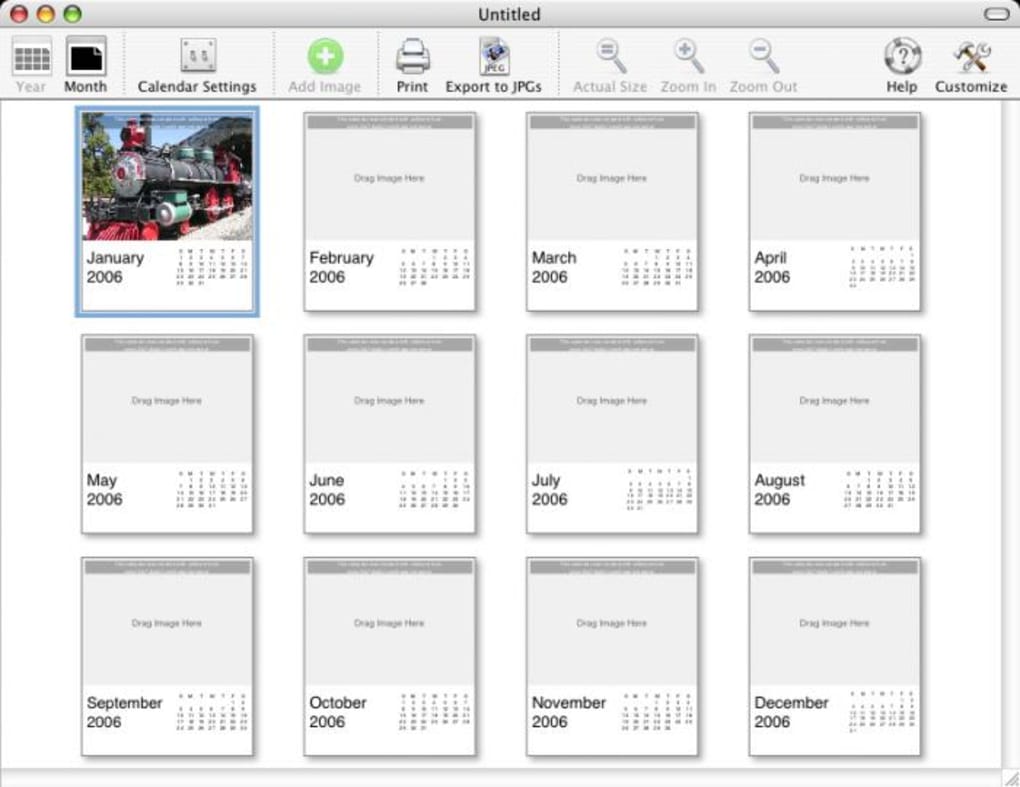
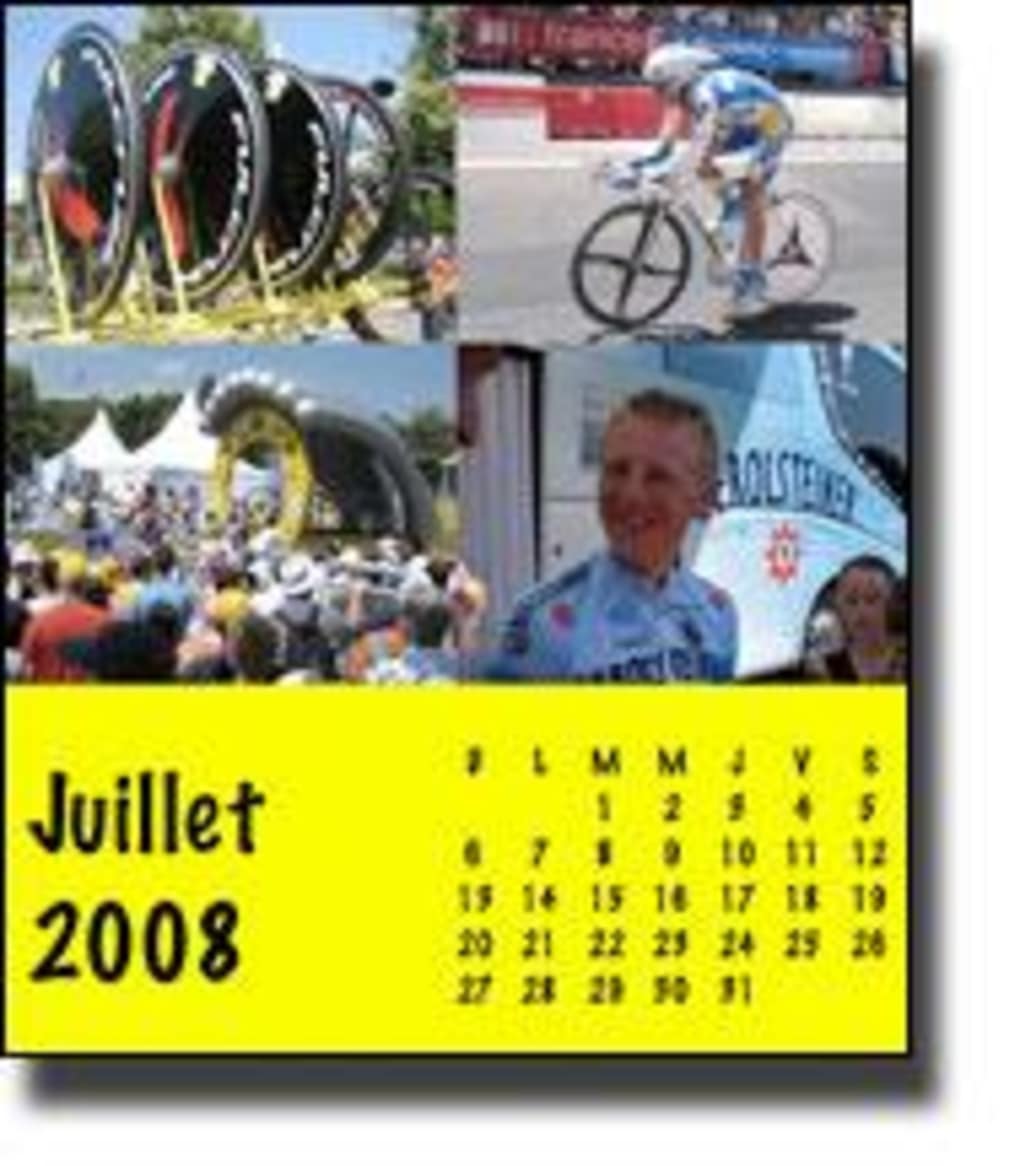
- Photo‑Driven Calendar Layout: Import up to 12 images—one for each month—and let the program automatically place them into a clean, printable calendar template.
- Dashboard Widget Export: Save your finished calendar as a macOS Dashboard widget that displays the current month, date, and your chosen photo.
- One‑Click Email Sharing: After creating the widget, you can email the .wdgt file directly from the app, letting recipients install it on their own Macs.
- Low Storage Requirement: The installer is under 10 MB, making it suitable for older Macs with limited free space.
- Simple Print Options: Choose between standard US Letter, A4, or custom sizes, and send the calendar straight to any connected printer.
- Support for OS X Tiger (10.4) and Later: The widget works on all Macs running Tiger or newer, ensuring broad compatibility across legacy and modern systems.
- Trial Version Flexibility: Although it’s a trial, the core calendar‑creation features are fully functional, allowing you to test the workflow before deciding on a purchase.
The feature set may look modest compared with modern cloud‑based design tools, but HappyNewYear! shines in its focus: turning personal photos into a functional, printable calendar while also providing a quick‑look widget for daily use. The integration with macOS Dashboard—though less prominent today—still offers a nostalgic, lightweight way to keep your schedule visible without opening a full‑blown calendar app. Users who value privacy also appreciate that the program works entirely offline; no internet connection is required to generate or print the calendar, keeping your images and dates secure on your own machine.
Installation, First‑Run Guide & Compatibility
Step‑by‑Step Installation
1. Download the installer: Click the “Download HappyNewYear!” button on the product page. The file will be named HappyNewYear_2.4.dmg.
2.
Mount the DMG: Double‑click the file; macOS will open a virtual disk showing the application bundle.
3. Copy to Applications: Drag the HappyNewYear.app icon into your /Applications folder.
4. Open the app: The first launch will trigger a security warning because the software is not notarized by Apple.
Choose “Open Anyway” in System Preferences → Security & Privacy.
5. Activate the trial: When prompted, click “Start Trial”. No credit‑card information is required; the trial runs indefinitely with full calendar‑creation capabilities but disables any future purchase‑only features (if added in later versions).
First‑Run Configuration
Upon launching HappyNewYear! you’ll be greeted by a clean window with three main tabs: Photos, Layout, and Export. In the Photos tab, click “Add Image” for each month and select a high‑resolution JPEG or PNG from your library. The app automatically scales the image to fit the month’s space while preserving aspect ratio.
Switch to the Layout tab to preview how each month will look on the printed page; you can adjust margins, font style, and the optional “Holiday Highlights” overlay. When satisfied, move to the Export tab where you can choose to Print directly, Save as PDF, or Export Widget. Selecting “Export Widget” creates a .wdgt package that you can place in ~/Library/Widgets or share via email.
Compatibility Details
HappyNewYear! is built for macOS 10.4 (Tiger) and later, which includes OS X 10.5 (Leopard), 10.6 (Snow Leopard), and all subsequent releases up to macOS 12 Monterey. While the Dashboard feature was officially deprecated after macOS 10.10 (Yosemite), the widget still runs on newer systems that retain the legacy Dashboard environment. Users on very recent macOS versions (Ventura, Sonoma) may need to enable Dashboard manually via Terminal commands or use a third‑party replacement. Because the application is a 32‑bit binary, it will not run on macOS 11 Big Sur or later on Apple Silicon without Rosetta 2 emulation; however, the core calendar‑creation portion (PDF export) remains functional even on those systems. No Windows, Android, or iOS versions exist—HappyNewYear! is strictly a macOS‑only tool.
Pros, Cons & Expert Review
Pros
- Very small download size – under 10 MB.
- Simple, photo‑centric workflow that requires no design experience.
- Unique Dashboard widget export for quick date reference.
- Offline operation protects personal images.
- Free trial provides full calendar creation without hidden paywalls.
Cons
- Interface looks dated compared with modern macOS design guidelines.
- Limited to 12 photos; no multi‑year calendar support.
- Widget functionality is restricted on macOS versions newer than 10.10.
- No built‑in cloud sync or sharing beyond email.
- Trial version lacks advanced typography and custom‑template options.
Frequently Asked Questions
Can I use HappyNewYear! on macOS Monterey or later?
Yes, the core calendar creation and PDF export functions work on macOS Monterey and later. However, the Dashboard widget feature requires the legacy Dashboard environment, which is not enabled by default on newer macOS versions. You can still export the widget and share it, but it may not display unless the user re‑enables Dashboard via Terminal.
Do I need an internet connection to create a calendar?
No. HappyNewYear! is a completely offline application. All image processing, layout generation, and PDF export happen locally on your Mac, ensuring your photos stay private.
Is the trial version limited in any way?
The trial version gives you full access to the calendar‑creation tools, widget export, and printing options. The only limitation is that future updates or premium templates (if released) would require a purchase. Currently, there are no hidden watermarks or time restrictions.
Can I customize fonts or colors in the calendar?
HappyNewYear! provides a small set of built‑in fonts and basic color options for month headings. For extensive typographic control you would need a more advanced design suite, but the preset styles are sufficient for most personal projects.
How do I share the widget with friends?
After you click “Export Widget,” the app creates a .wdgt file. You can attach this file to an email directly from HappyNewYear! or locate it in your ~/Library/Widgets folder and send it manually. Recipients simply double‑click the file to install it on their own Macs.
Conclusion – Should You Download HappyNewYear!?
If you’re looking for a fast, free way to turn cherished photos into a printable calendar and you appreciate a quirky macOS Dashboard widget, HappyNewYear! still holds its own despite its age. Its tiny installer, offline workflow, and straightforward UI make it especially appealing for families, teachers, and small‑business owners who need a one‑off calendar without committing to a subscription or learning complex software. While power users may crave deeper customization and cloud integration, the program’s pros outweigh the cons for its target audience. Download HappyNewYear! today, create a personalized calendar in minutes, and share a handy widget with anyone who uses a Mac. Click the button below to start your free trial and bring your photos to life on every page of the year.







